How to set up mac mail | set up apple mail in a MINUTE | Tezadvise.com ��
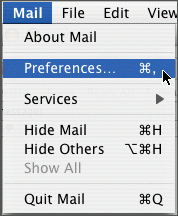
- In Mac Mail, go to the Mail menu and click on Preferences.
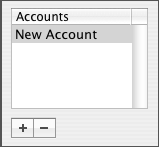
- Click the Accounts icon in the Mail Preferences window.
- Click + to create a new account.
- Select POP from the drop down menu.
- Enter your email information:
User Infomation: Your Name: This is the name that will be displayed when sending your email Email Address: The email address people will reply to when receiving email from you Logon Infomation: User Name: With Comentum email accounts this is your email address name example: name@yourdomain.com Password: Assigned by your email provider 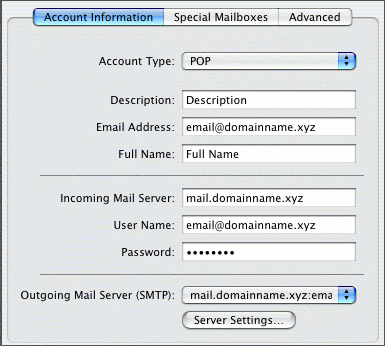
- From the Outgoing Mail Server dropdown select Add Server.
- Enter the Outgoing Mail server information.
Server Information: Incoming Server (POP3): mail.comentum.com (for Comentum email accounts) Outgoing Server (SMTP): mail.comentum.com (for Comentum email accounts)
Note: see below for SBC and RoadRunner users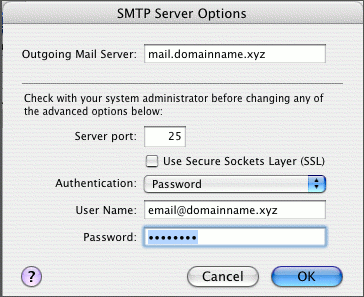
- Click OK.
SBC and RoadRunner Users (or any Internet provider)
If you have Internet Access through a company such as SBC or RoadRunner, you may need to check the button
'Log on using.' Then fill in the following fields:
User Name: (Type in your email address. Example: bob@yourdomain.com)
Password: (Type in the password given to you by Comentum)
Outgoing Server (SMTP): Call SBC or RoadRunner for their information and enter it into the field
'Log on using.' Then fill in the following fields:
User Name: (Type in your email address. Example: bob@yourdomain.com)
Password: (Type in the password given to you by Comentum)
Outgoing Server (SMTP): Call SBC or RoadRunner for their information and enter it into the field
Source : https://www.comentum.com/add-email-accounts-macmail.html


Leave a Comment